 ROOTWIN PROJECT
User
Guide
DDLC mod localization toolkit. Developed by ROOTWIN PROJECT together with the TheOneTranslator localization team.
This guide is aimed at end users: translators, mod authors and content managers. It gathers everything you need to work with the program effectively.
We strongly recommend reading the guide in full before starting. Skipping even one technical detail or warning can lead to critical errors when building your projects.
Workspace overview
The window is split into three logical zones for controlling the decompilation and patching pipeline.
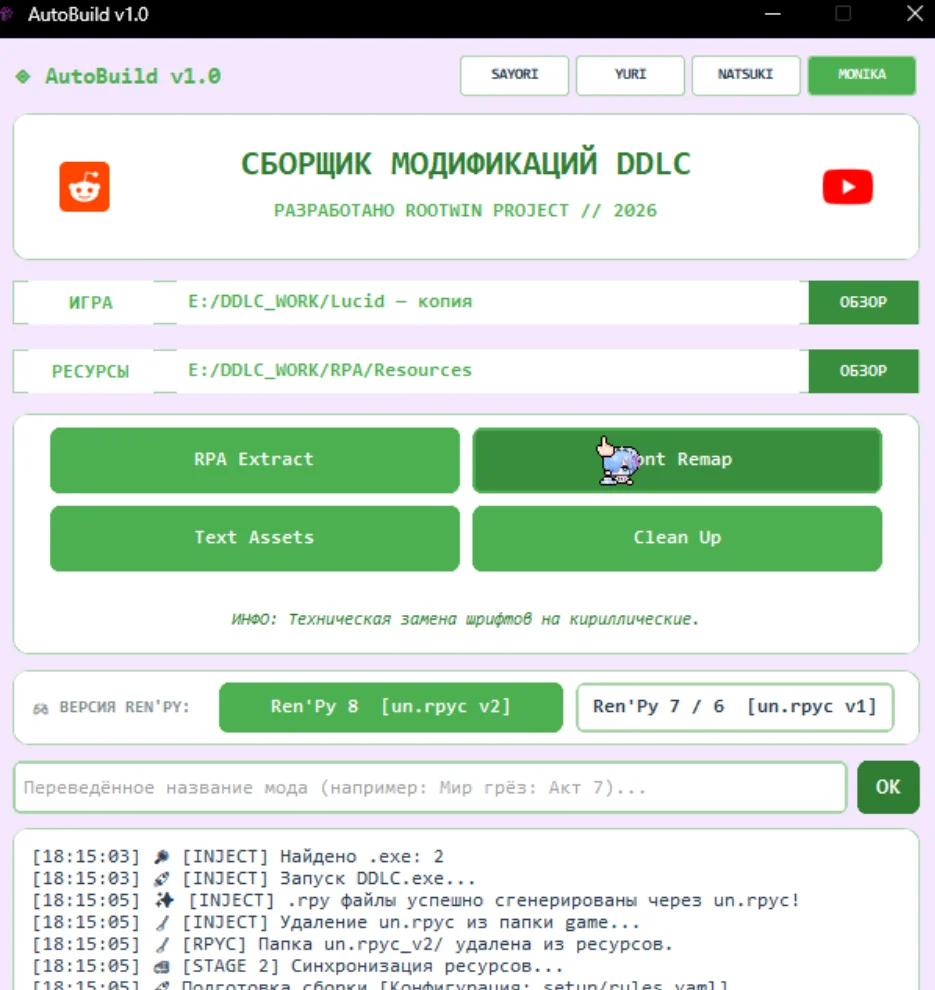
Configuration — working directory selection (resources / target mod), localized project name input, engine architecture switches (Auto / 6-7 / 8).
Automation modules — toggle buttons for the four pipeline steps. Colored = active, grey = skipped. Hover a module for a tooltip.
Log console — a write-protected output window with emoji progress indicators in real time, auto-scrolling as the build progresses.
Modular build system
Four independent stages. Enable and disable any combination — just click the card.
Opens heavy archives (scripts.rpa, images.rpa, etc.), extracts content, finds .rpyc files and turns them into readable .rpy.
Scans the whole codebase, finds references to the original fonts and rewrites them to point at Cyrillic fonts from your resources folder. Fixes garbled text ("kraказябры") and empty boxes.
Checks the rules.yaml dictionary and translates buttons like "New Game", "Settings", "Save", plus character names.
Removes temporary index files, engine cache and leftover .rpyc files — leaves you with a spotless working folder.
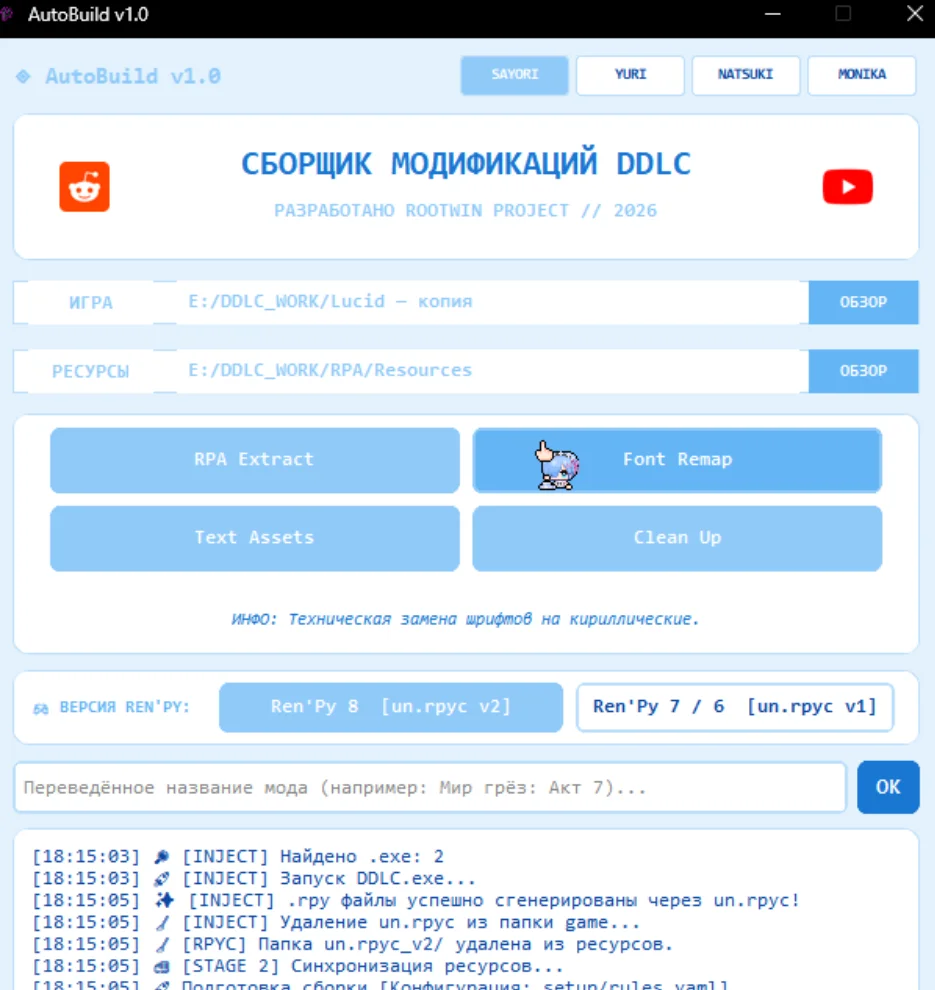
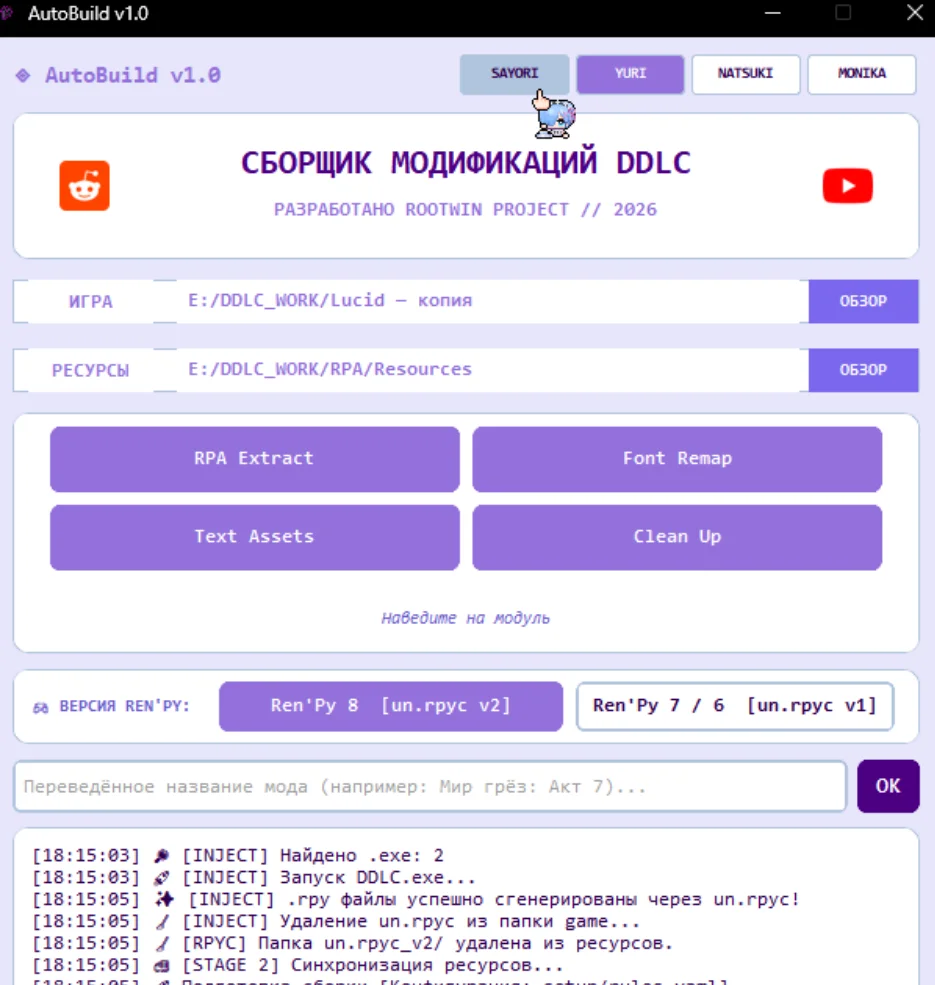
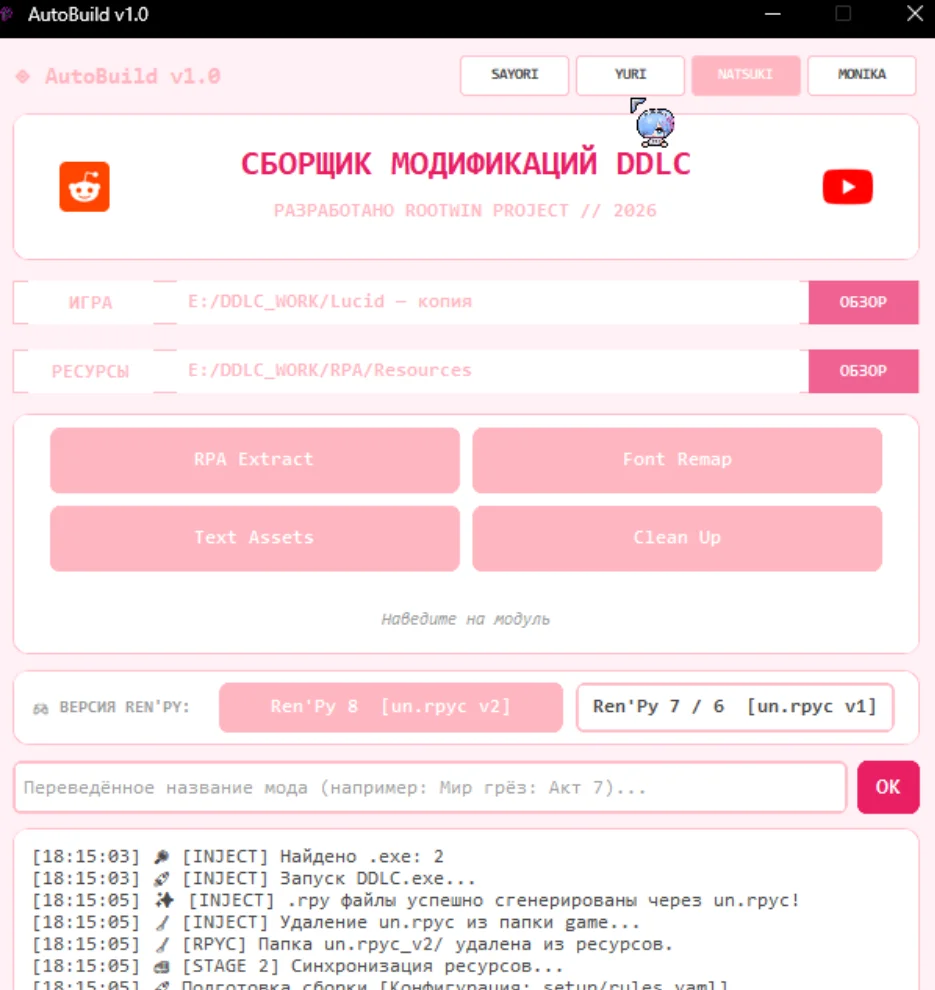
Visual themes
Each theme changes the color palette and Discord Rich Presence — showing which heroine's patronage you're translating under.
Two-level monitoring
Mini console (on-the-fly)
On-disk log file
Whenever something fails — a corrupted archive, an antivirus block — a session.log file is created in the program's working folder. It records absolutely every action, including OS-level traces.
Send it to the developer if you encounter system failures.
Output directories
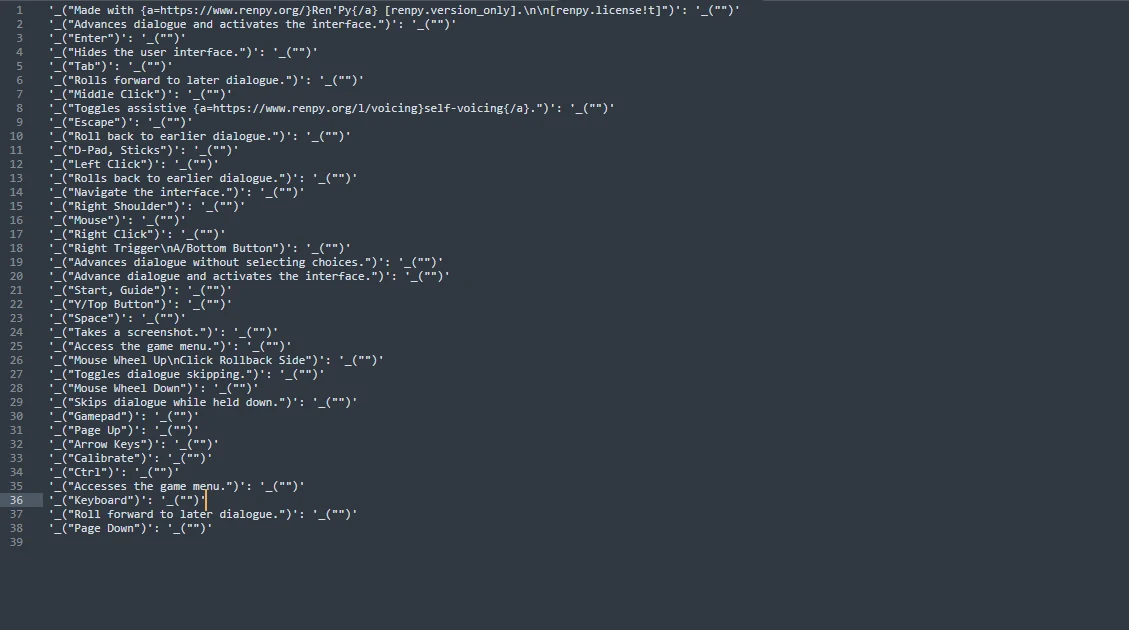
Missing text
All interface, menu and popup strings found in the code that didn't match any rule in rules.yaml. Sorted into files with exact line references to the original code.
Story map
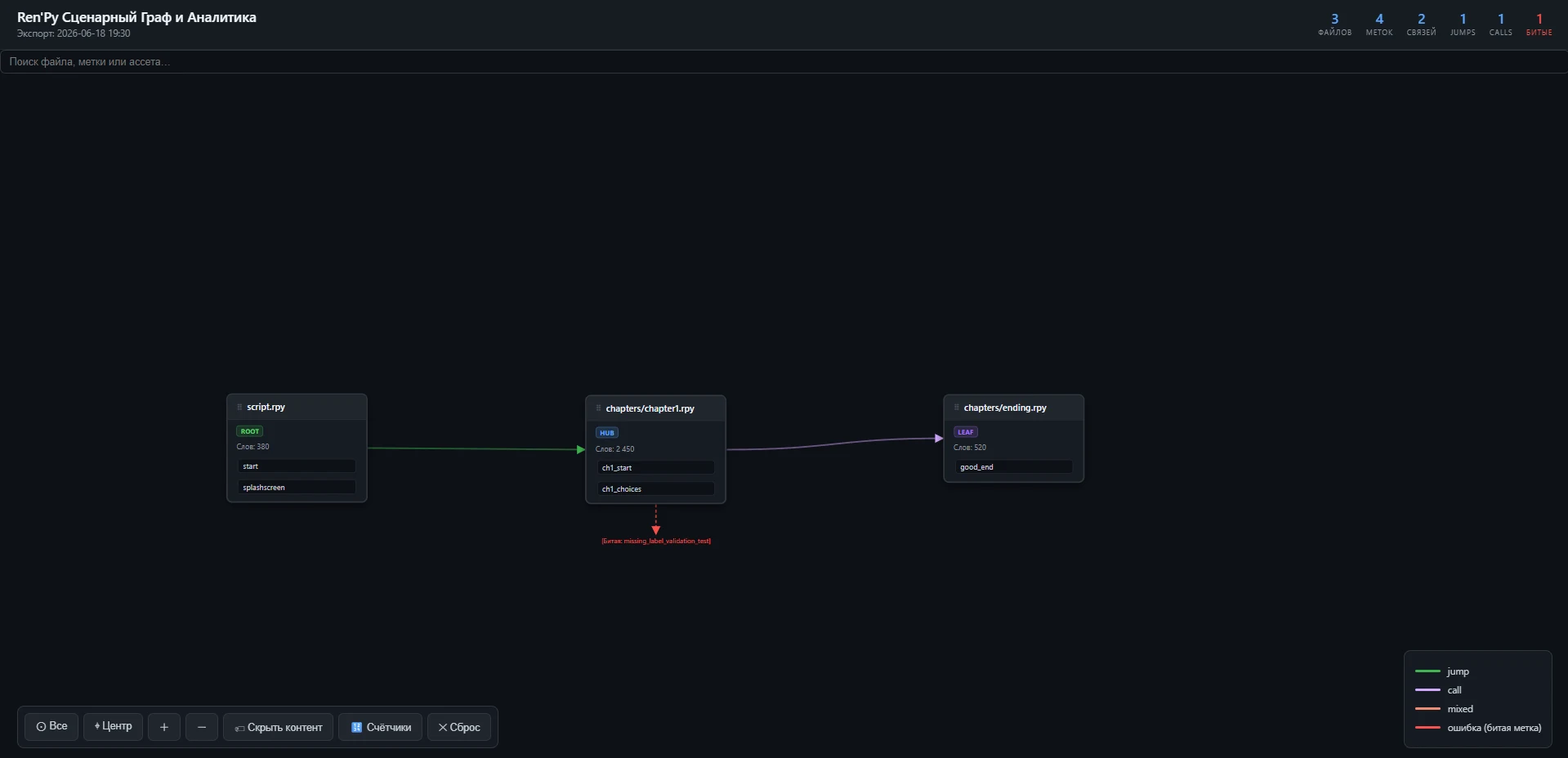
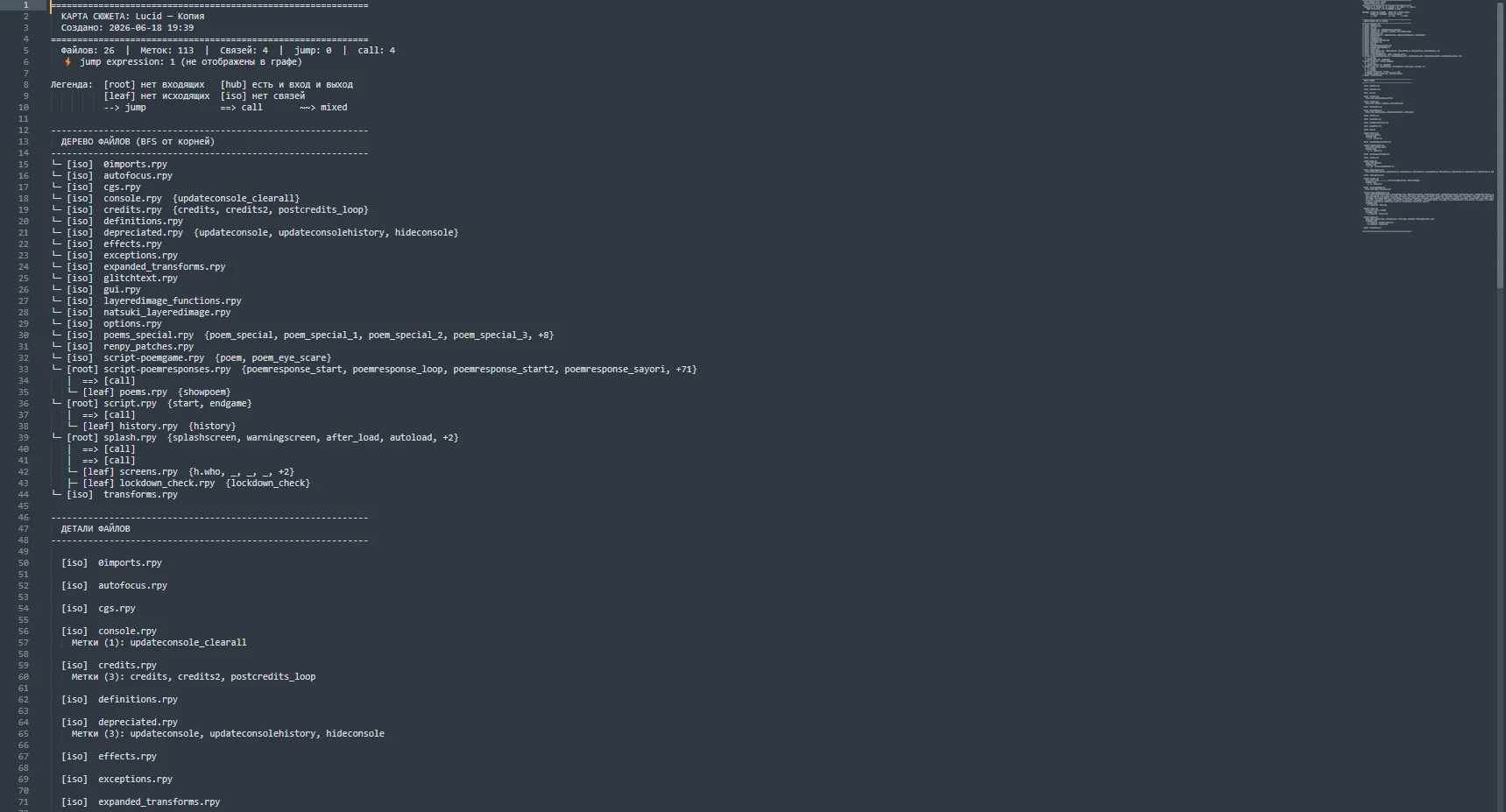
An audit of the novel's logic in two formats: a text timeline of scripts with jump / call transitions, and an interactive HTML graph with search, zoom and camera focus.
Step-by-step workflow
Preparation
Launch the program. Put your Cyrillic font files and an up-to-date rules.yaml into your resources folder.
Path setup
Use the "Browse" buttons next to GAME and RESOURCES to pick the visual novel folder and the resources folder.
Naming
The "OK" button is smart: leave the field empty and press it — the program analyzes the mod path, detects the root folder name, strips extra characters and fills it in. Or type a name manually.
Theme & modules
Pick a theme (Sayori / Yuri / Natsuki / Monika). All 4 modules are on by default — click to disable the ones you don't need (they turn grey and stay untouched).
Engine selection
Ren'Py 8 → injector v2 + Python 3 (modern mods). Ren'Py 6/7 → injector v1 + Python 2.7 (classic DDLC). Leave unselected for auto-detection based on file structure.
Start & monitor
Click "Initiate Build". Watch the mini-console. Up to 3 automatic injection attempts per .exe — if .rpy files appear after the first attempt, the cycle ends instantly. Wait for the final completion message.
Results
Open the untranslated/ and story_maps/ folders to review the structure and finish any missing interface strings.
Safety and environment
Don't touch anything during the build
While the pipeline is running — don't move files, don't open them in editors, and don't launch the game. The program will finish all disk operations exclusively on its own.
Game window during injection
Once the tool opens the game window — absolutely do not click it or close it manually. The program will wait for script generation and close the game itself via a trigger.
Environment requirements
Strictly requires Python 3.13. Make sure to check Add Python to PATH during installation. If it was missed, do a clean reinstall.
Mod doesn't launch on the first try
This is normal. Under heavy load the OS can't release file handles instantly. Wait a few seconds and try again — it will launch on the second attempt, guaranteed.
Before the very first build, the program shows a security notice and asks you to confirm you understand the risks — this appears once per installation.
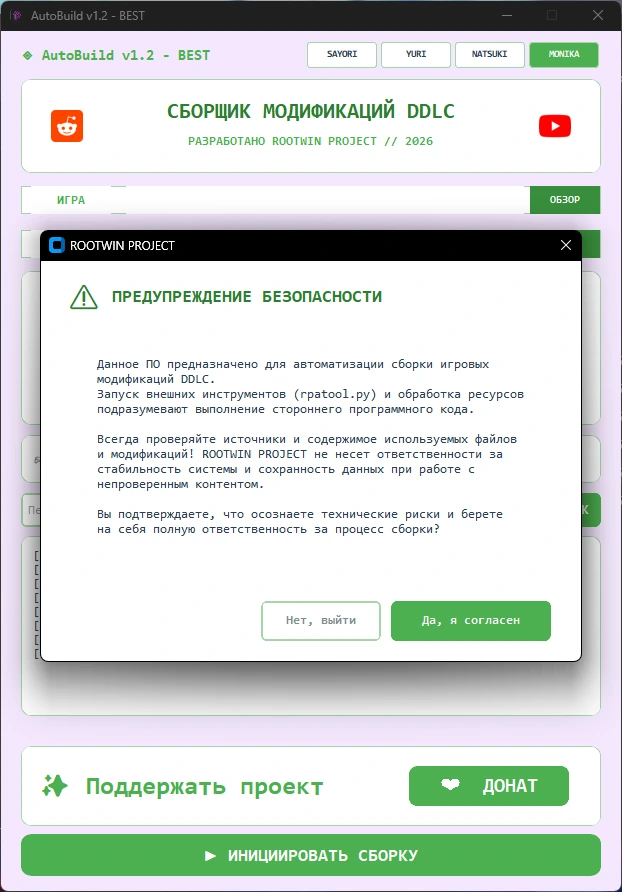
The software is meant to automate the build of DDLC game modifications. Running external tools (like rpatool.py) and processing resources means executing third-party code.
Always check the source and contents of any files and mods you use. ROOTWIN PROJECT is not responsible for system stability or data integrity when working with unverified content.
Program file structure
Filling in rules.yaml
The file setup/rules.yaml is the only place you edit between builds — no code changes needed. It stores three kinds of settings: interface translation strings, font replacements, and the localization team's links shown in the game's Help screen.
Pairs of 'original string': 'translated string' — every menu label, button, and system message the template shows.
Pairs of "OriginalFont.ttf": "CyrillicFont.ttf" — which font file replaces which, so Cyrillic text renders correctly.
List of character variables with their en/ru names, used to rename characters defined via Character() or DynamicCharacter().
Name and a free list of links for the localization team. The name field is substituted into the game's "About" screen (gui.about). links is a plain list of label / url pairs shown as buttons on the in-game Help screen — no fixed slots for any specific platform, add or remove entries freely (1 to 6 links, any order).
Example of the localization_team block — this is what feeds the "USEFUL LINKS" screen the tool inserts into screens.rpy. Copy one "- label / url" pair per link, in any order, up to 6:
# Конфигурация команды локализации и ссылок для экрана помощи (Help screen)
localization_team:
  # Название команды переводчиков (отображается в меню «Об игре» / gui.about)
  name: "TheOneTranslator"

  # Ссылки на ресурсы команды (отображаются кнопками на экране «Помощь» / «ПОЛЕЗНЫЕ ССЫЛКИ»)
  # Доступно от 1 до 6 ссылок в любом порядке.
  # label — название кнопки, отображаемое игроку в меню
  # url — полная ссылка на ресурс (сайт, канал, группа, чат, сервер и т.д.)
  links:
    - label: "Сайт TheOneTranslator"
      url: "https://sites.google.com/view/theonetranslator/home"
    # Ссылка на группу сообщества
    - label: "Группа в VK"
      url: "https://vk.com/theonetranslator"
    # Ссылка на новостной Telegram-канал команды
    - label: "Телеграм канал"
      url: "https://t.me/TheOneTranslator"
    # Ссылка на чат обсуждений / сервер сообщества
    - label: "Дискорд сервер"
      url: "https://discord.com/invite/EFVdYes"
To add a link, copy an existing "- label / url" pair and edit the values (quotes must stay, the words label and url must not change). To remove a link, delete its whole pair. The order in the file is the order buttons appear in-game — you can freely reorder them.
Feedback
Most errors can be resolved with AI without waiting for support — copy the problem text and session.log and ask an up-to-date AI model with internet access.
Why an error "suddenly" appears only after unpacking
A clear sign the issue is worth showing to an AI first: everything worked inside the archive, but crashes started after unpacking.
mod_assets.rpa The file autofocus.rpyc sits packed inside the archive. Ren'Py reads the ready bytecode without issue — it already went through the engine.
mod_assets/MPT/autofocus.rpy The script now sits as source code. Ren'Py tries to recompile it and crashes on line 267.
The logic is simple: the unpacker itself worked correctly, but it exposed an old bug in the script that the engine used to silently ignore thanks to a ready-made cache. An AI can read the error log's context and suggest a fix faster than a developer could read your message.
What to include in a bug report
- logs/session.log — the file from the tool's root folder
- Ren'Py errors — traceback.txt / log.txt if the engine produced them
- Screenshot of the main window at the moment of the error, with the console expanded
- Screenshot of the file structure — the program's folders and the mod's game/ directory